Innovation Guides
Send to Fax
What is Send to Fax?
Send to Fax enables compliant information sharing from Vault CRM in fax-dependent markets (e.g., Germany). It supports consent management and enforcement, full delivery tracking, and token-enabled fax templates managed directly in Microsoft Word. Improve disjointed workflows with a single, audit ready process. No need to build an internal solution, or outsource fax to agencies.
Up to 30.000 faxes per year free of charge1
Why is this important?
Send to Fax brings compliant, tracked, and personalized communication to markets reliant on fax technology.
It moves the process inside your existing CRM platform, offering three major benefits.
| Complete Compliance |
Ensures all outgoing faxes respect captured consent preferences for the fax channel and adheres to regulatory requirements and GDPR. |
|---|---|
| Tracked Delivery & Usage |
Provides full delivery tracking and records every transaction. It also monitors usage, including the number of pages sent, against set limits. |
| Quick & Personalized |
Allows end-users to select from pre-approved, token-enabled templates and easily personalize the content before sending, speeding up crucial communications. |
How is Send a Fax Used?
| End User (e.g., Sales Rep) |
Saves time by selecting pre-approved, personalized templates and sending a fax instantly, all while adhering to the HCP's consent status. | Announce a rep visit, pharmacy promotions, seasonal greetings. |
|---|---|---|
| Fax Admin User (e.g., Marketing/Ops) |
Maintains control and consistency by creating, managing, and uploading approved fax templates directly in Microsoft Word, and monitoring overall usage. | Managing all templates, ensuring all content is compliant, tracking total page usage. |
Core Components & Workflow
01 | Content source
Documents are directly uploaded to Vault CRM, ensuring only approved materials are shared.
02 | Fax Templates: The Key to Efficiency
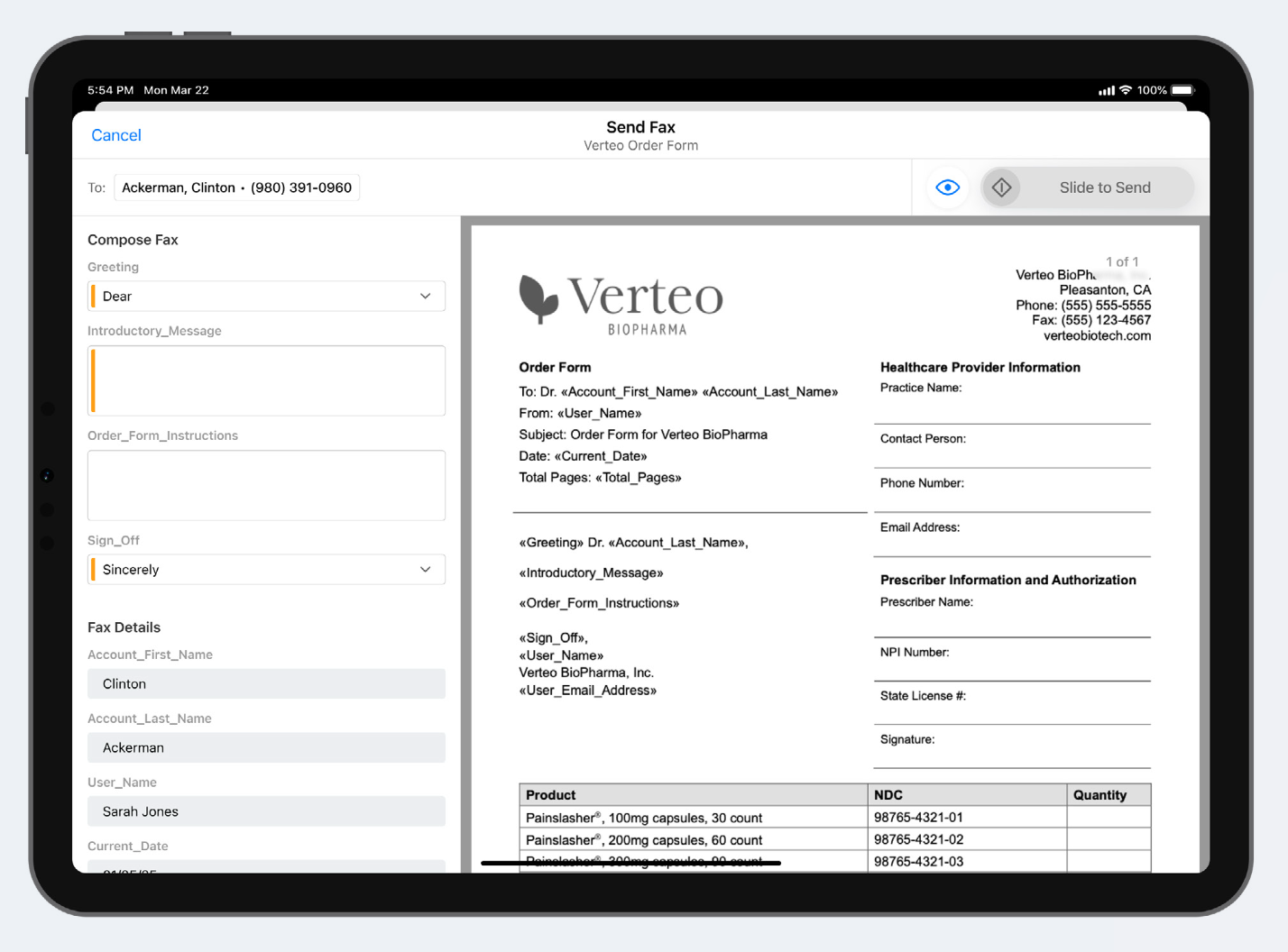
- Templates are created in Microsoft Word by an admin.
- They use tokens (placeholders) that automatically pull in personalized information (like the HCP’s name, or the user’s signature) when sending.
03 | Simple Sending Process
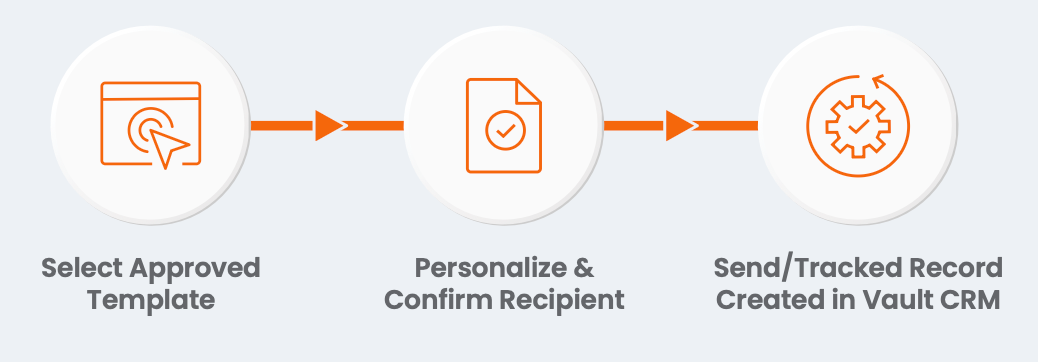
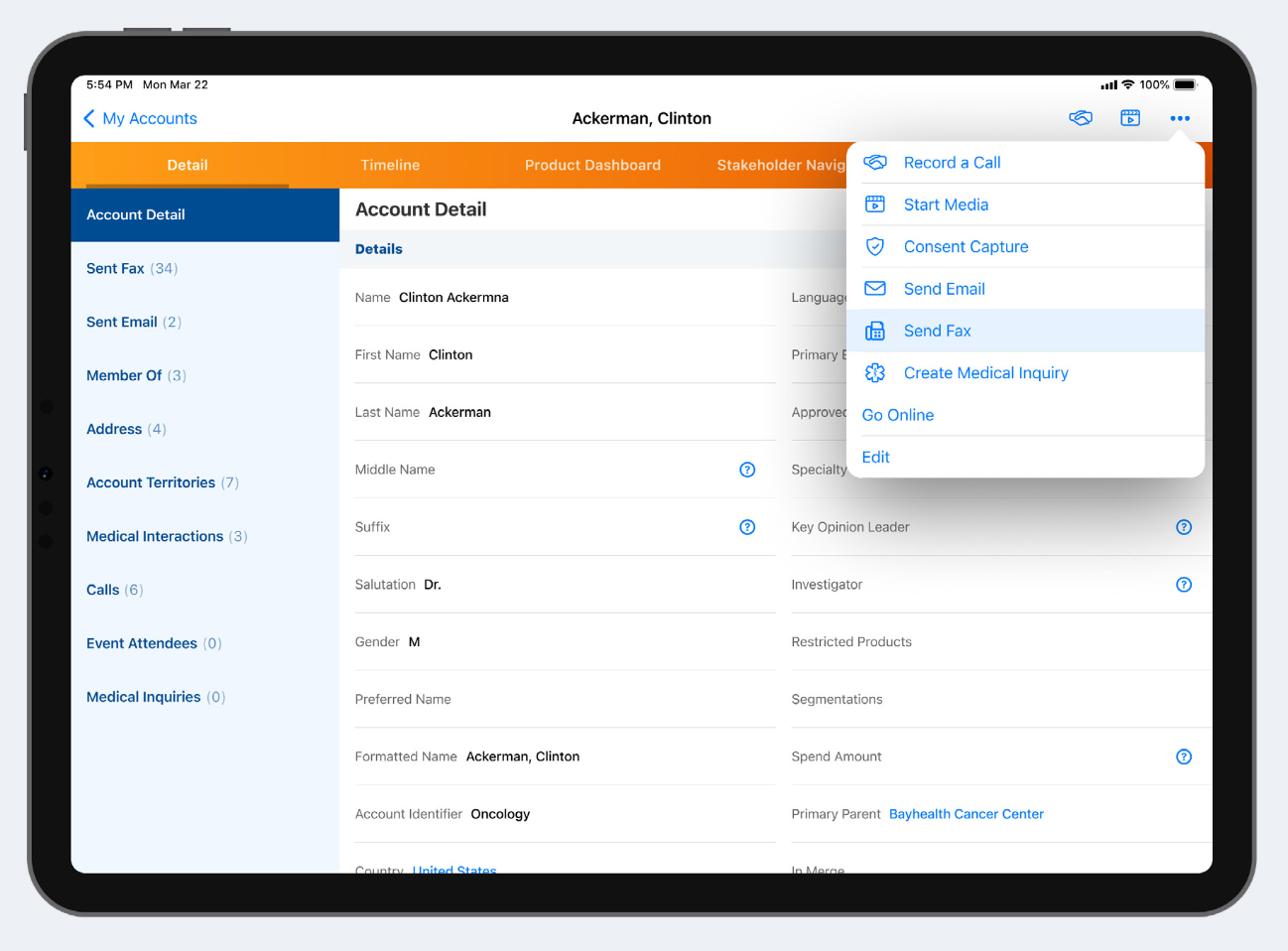
- Select an approved template. Users can search, sort, and filter the list of templates, and preview a template by selecting the “Eye” icon.
- Confirm the recipient and fax number (the system automatically checks for valid consent).
- Enter personalization details for any user input tokens.
- Send Fax - a “Sent Fax” record is automatically created for tracking.
1Maximum of 3 pages per fax can be sent.