Innovation Guides
Putting Your Contact Info at the HCP’s Fingertips
Veeva Vault CRM Engage’s Digital Business Card puts always-accurate contact info at the HCP’s fingertips.
Veeva Vault CRM Engage's Digital Business Card helps HCPs keep track of biopharma contacts on their smartphone. The business card is always updated with the biopharma contact’s latest information, making it easier for HCPs to reach out when they need assistance.
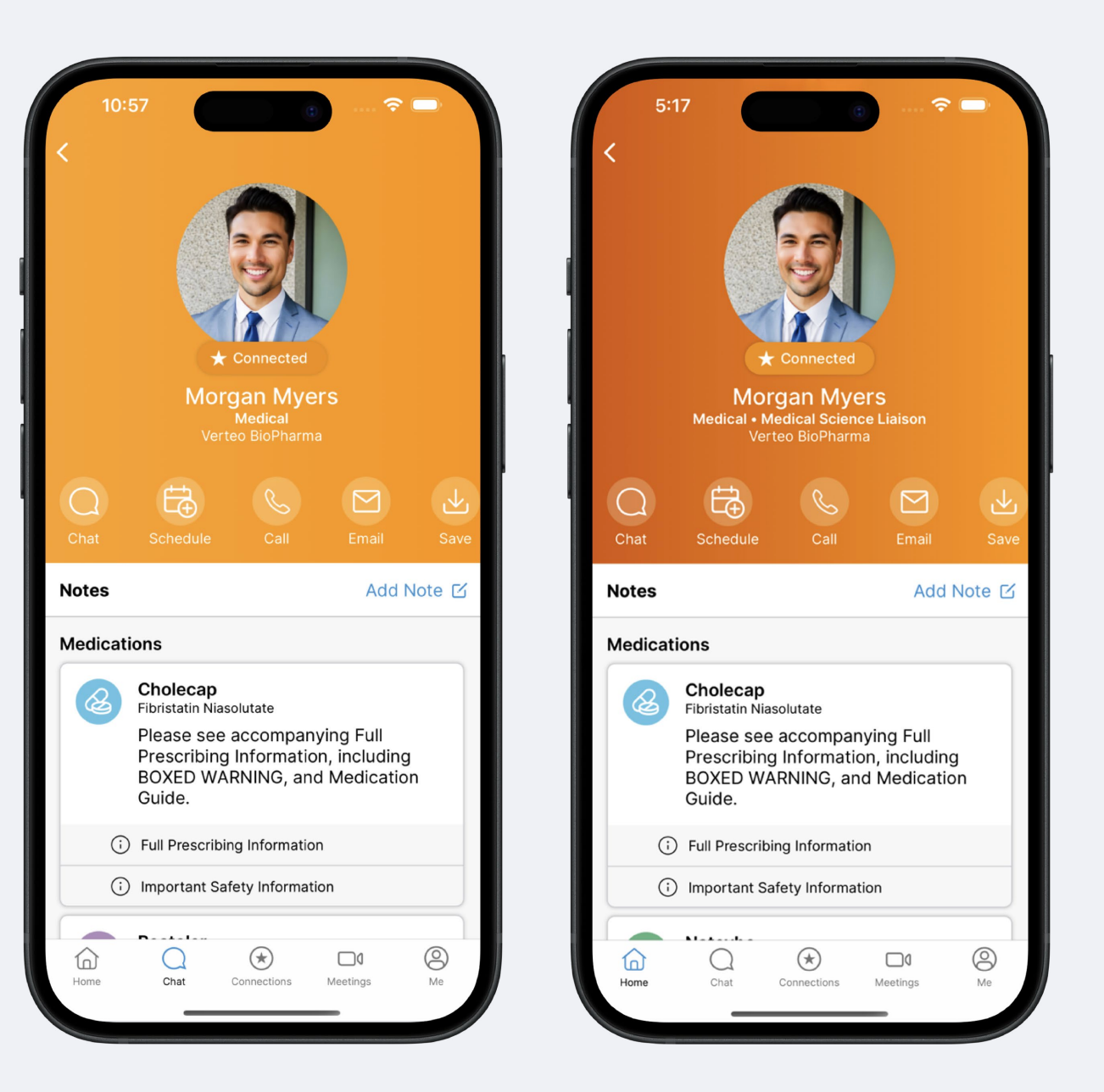
The Digital Business Card is accessible to HCPs on mobile devices and desktop computers. From the business card, HCPs can see the contact’s name, job title, and company, as well as their contact methods. With the tap of a button, HCPs can make a phone call, send an email, or store their biopharma contact’s business card directly to their device contact book. The Digital Business Card is always current—once a contact makes an update to their information, the change is synced across all instances.
HCPs can also access the Digital Business Card through their Engage Connect account, which unlocks additional features of the business card. Once logged into Engage Connect, HCPs can view the contact’s affiliated brands and content, schedule a meeting, or send a compliant instant message.
Tips and Tricks
Using Brand Colors in the Digital Business Card
Administrators can change the Digital Business Card’s background color to match branding. The background of the Digital Business Card can either be one solid color or a gradient using a primary and a secondary color. If no color is picked, the background color defaults to navy blue.
Sending the Digital Business Card in an Approved Email
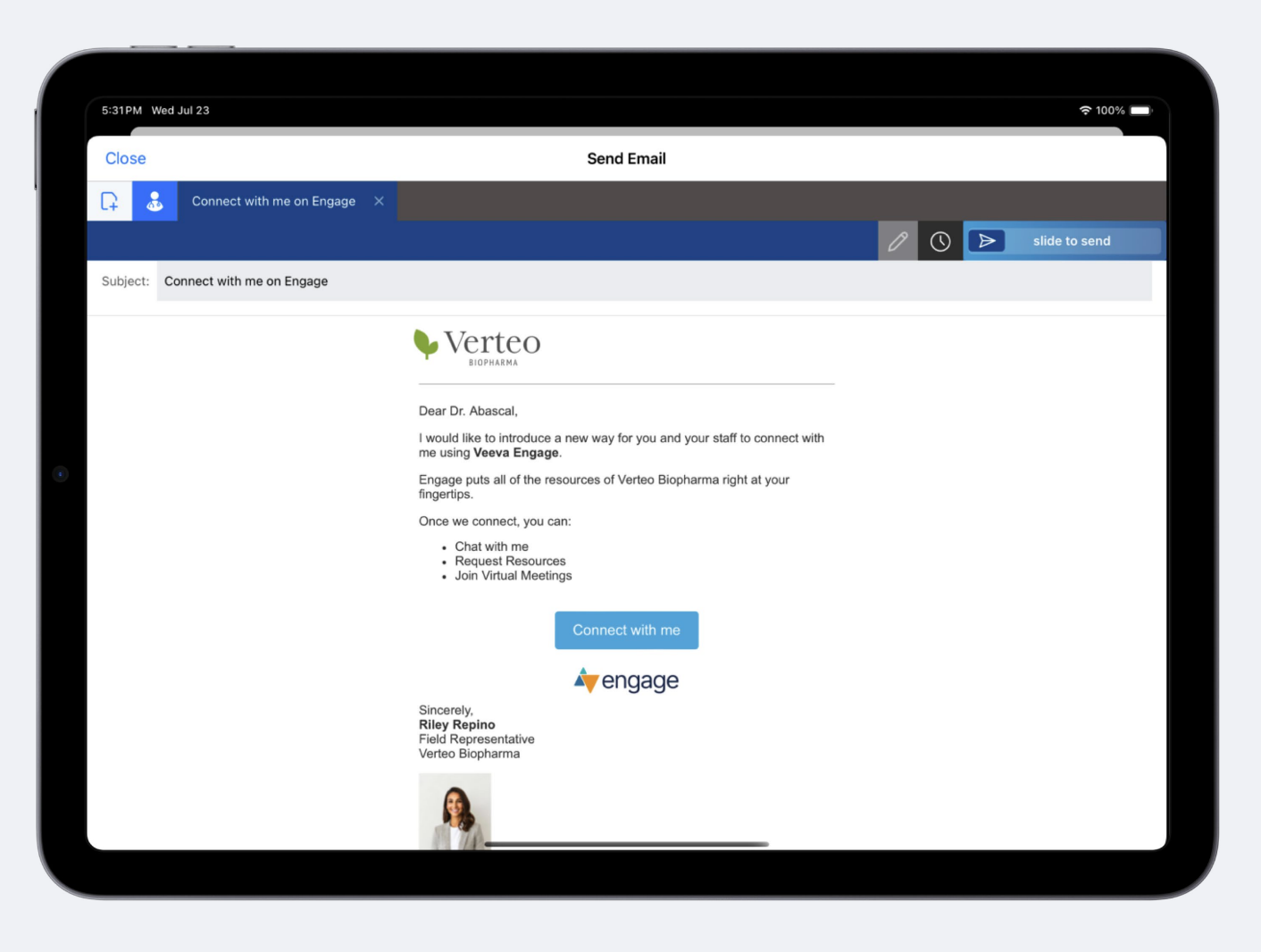
HCP-facing representatives can send Digital Business Cards to HCPs in emails. Home office can insert links to a field rep’s business card into any Approved Email template. Once an HCP opens up the business card, they can choose to add the HCP as a connection in Engage.
Distributing the Digital Business Card via QR Code
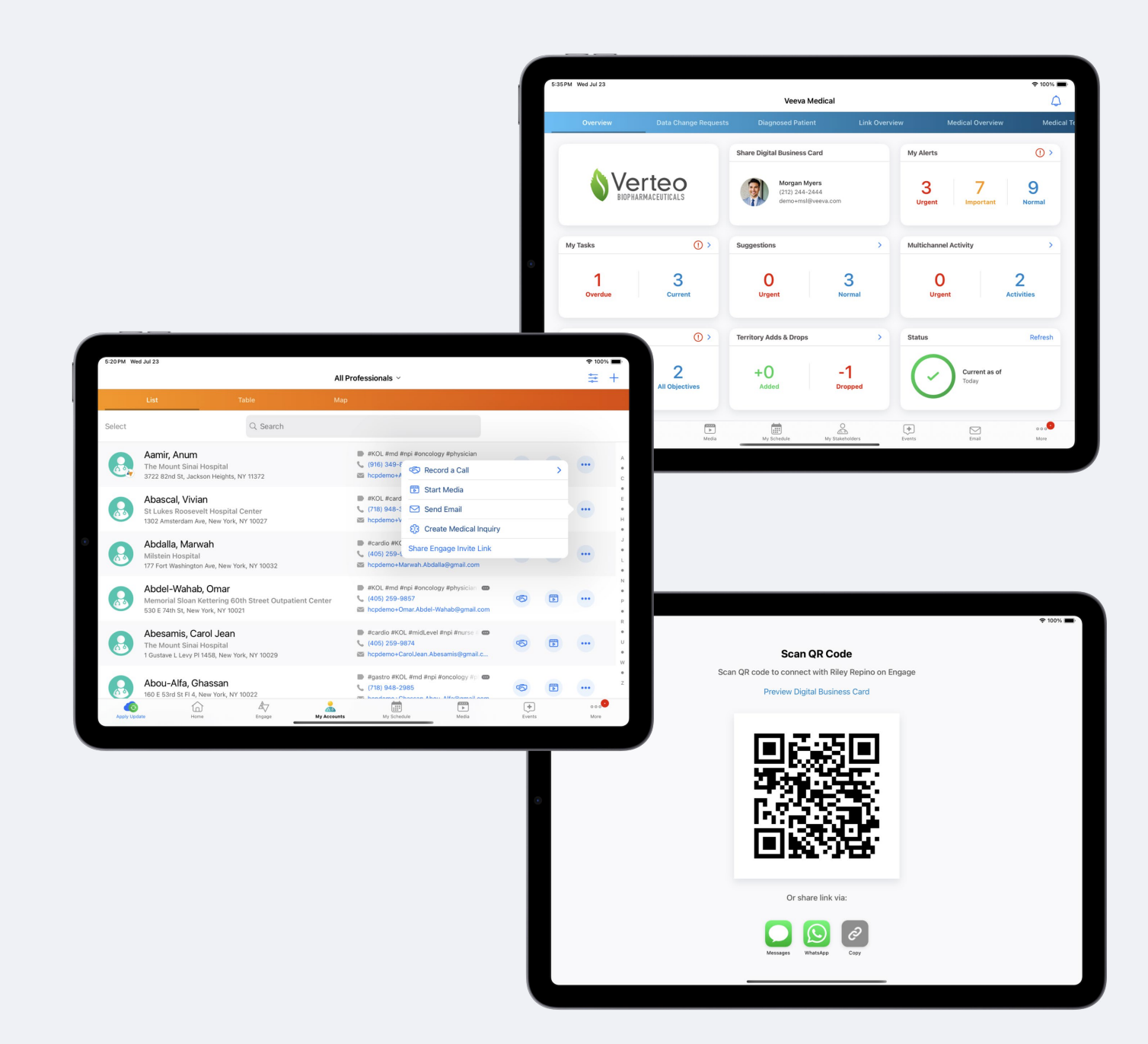
When meeting in-person with an HCP, field reps can display a QR code that links to their Digital Business Card. Once an HCP scans the code, they can see the business card in their browser or the Engage app (if they have it downloaded and are signed in).
Reps can access their Digital Business Card QR code via the Share Engage Invite Link option on a specific Account or via a widget that lives on the home page of their iPad app. From the QR code page, they can also send their business card to HCPs through configurable channels, such as text message, WhatsApp, or shareable link.
Sharing Digital Business Cards from Apple Wallet
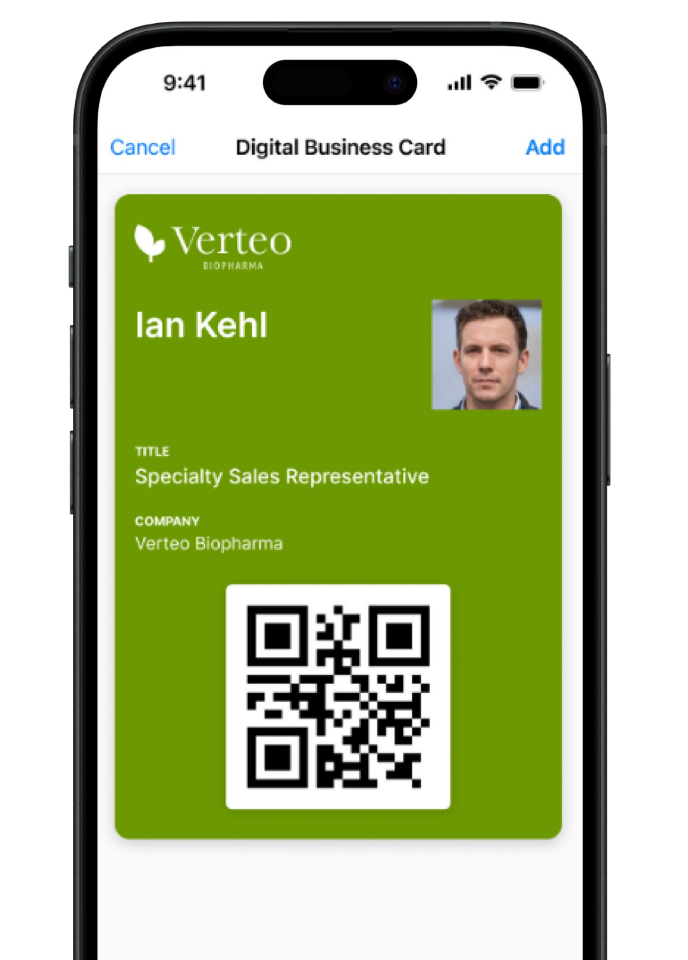
Reps using Apple devices can load their Digital Business Card to their Apple Wallet. Once this feature is configured, the Apple Wallet version of the business card will display the rep’s name, photo, company, title, and their business card QR code. The background color of the business card will also carry over to the Apple Wallet version.
Saving Digital Business Card Information to a Mobile Phone
After an HCP receives a Digital Business Card, they can save the rep’s contact information to their smartphone contacts with the press of a button. The information contained in the business card will be ported over to the smartphone contact book along with a link to the rep’s Digital Business Card.
Tracking HCP Views on Digital Business Cards
Administrators can monitor usage on Digital Business Cards and see whether HCPs have viewed the business card. Each time an HCP accesses the link to the business card, the activity is logged into the Vault CRM database and can be used in reports or in the HCP’s account timeline.

Resources
Get your teams started on the Digital Business Card with our Vault CRM Help documentation.
- Using Digital Business Cards
- Sending Engage Connection Invites to HCPs
- Sharing Digital Business Cards from the Home Page